Laser workflow
LightBurn depth map: prepare the grayscale before the first burn
LightBurn reads brightness as depth in 3D Sliced mode. The file only helps if the direction, tonal range, and material response are tested in that order.
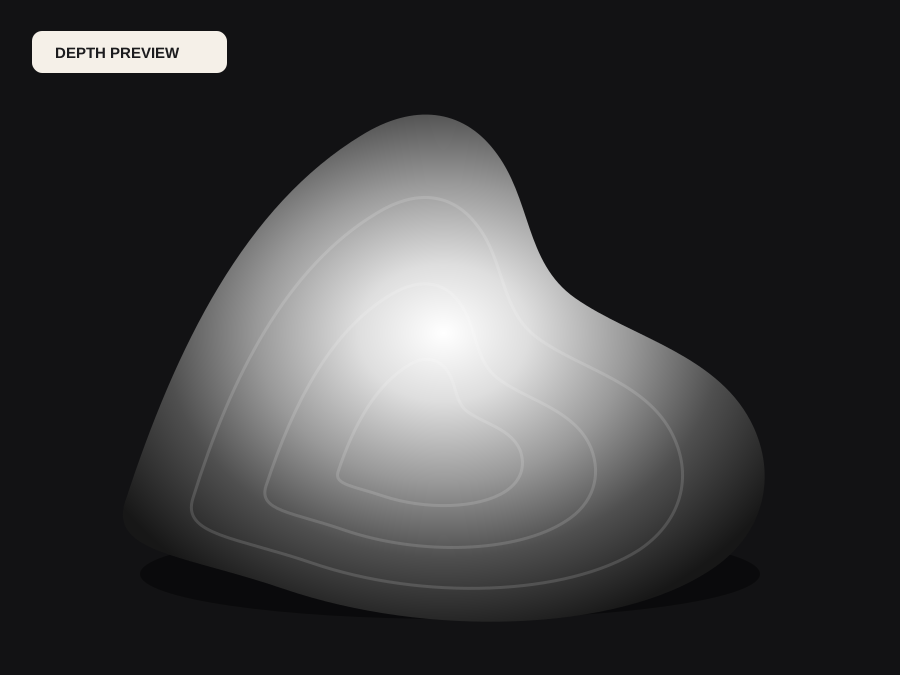
What LightBurn expects from a depth map
In 3D Sliced mode, LightBurn uses grayscale brightness to drive depth across a series of passes. The exact mapping depends on the selected mode and the material, but the file-side decision is the same: one end of the range is near or deep, and the other is far or shallow. A map that looks attractive on screen can still burn backward if that direction is not confirmed in the controller preview.
The file also needs a quiet background and smooth transitions. A busy background carries depth variation that competes with the subject. A hard edge can become a visible step, and a clipped highlight can lose the top of a face. Inspect the grayscale at full size before importing it.
Ask the controller preview one question: does the brightest part of the subject sit at the surface you intend? If the preview shows the background deeper than the face, invert the map or change the mode before touching power. The preview is cheaper than a wasted blank, and it tests the file rather than the material.
Try the workflow
Put this guide against your own image
The tool below is the same workbench described in this article. Generate a free preview, inspect the source checks, and decide whether the image is worth a production file.
Live manufacturing workbench
Upload a photo. Preview the depth. Download your file.
Three free AI previews per day. Source checks, editing, 3D preview, and compatibility exports are free.
Choose a source image to begin.
8-bit or true 16-bit?
8-bit grayscale gives 256 levels. For many laser jobs, a shallow relief, and a material that responds nonlinearly to power, that is enough. 16-bit gives 65,536 levels, which can reduce banding on a long gradient or a large engraving, but only if the source actually contains more than 256 meaningful levels and the controller resolves them.
A common mistake is exporting an 8-bit preview into a 16-bit container and calling it high precision. The extra levels are empty. DepthCarve labels the free compatibility file as preview-derived and encodes the true 16-bit pair from raw floating-point depth only in the approved production bundle.
Import, orientation, and scale
Import the PNG at the final physical size. Check the image orientation, the aspect ratio, and whether the software has mirrored the file. A portrait that burns backward is usually a direction problem, not a model problem. Use the invert control to create both interpretations, then compare the controller preview and a small test burn.
If the job uses a frame or a border, make sure it is part of the geometry rather than an artifact of the image edge. A flat border gives the laser a predictable resting level and reduces the chance that edge clutter becomes a raised ridge.
Power, speed, and the material test
A depth map does not know the material. The same file can produce a shallow burn on one plywood and a deep, charred pass on another. Test on scrap from the same batch with the same focus, power, speed, interval, and number of passes. Change one variable at a time.
Look for the deepest pass, the finest tonal step, and the edge of the subject. If the image is muddy, the tonal range may be compressed; if the burn is uneven, the material or focus may be the cause. Do not fix a material problem by changing the depth map.
A useful test matrix changes one axis at a time: a power ramp at fixed speed, then a speed ramp at the best power, then a pass-count check at the best pair. Keep the focus and the material batch constant. Mark each square with its settings and keep the tile with the job record; a photograph of the tile is not a substitute for the physical sample when the next batch of material arrives.
Common failures and what they mean
A reversed relief means the black-and-white direction is wrong for the selected mode. A flat result usually means the useful range is compressed or the relief height is too small. A halo around the subject is often a source or compression problem. A stepped gradient can be 8-bit banding, a clipped source, or a controller setting.
Record the file, the settings, and the result. A shop that can reproduce a burn is more valuable than a shop that got one good result by accident.
A short LightBurn pre-flight
Confirm the direction, the tonal range, the physical size, the material test, the focus, and the number of passes. Preview the job. If the preview shows a reversed face or a background that is deeper than the subject, stop and fix the file before burning.
The free 8-bit PNG and the compatibility container are enough for this test. When the job needs the true 16-bit pair or a watertight mesh for another process, approve one production bundle and keep the ZIP with the job record. Note the LightBurn version and the selected mode as well, so a later software update can be compared against a known result.
Before the file moves forward
Final checklist
- The near and far direction is confirmed in the LightBurn preview.
- The background is quiet and the subject occupies a useful tonal range.
- The file is imported at the final physical size and correct aspect ratio.
- The 8-bit versus 16-bit choice matches the source and the controller.
- A scrap test uses the same material batch, focus, power, speed, and interval.
- The final settings and result are recorded for the next job.
Straight answers
Questions this workflow raises
Does LightBurn support 16-bit depth maps?
Support depends on the LightBurn version and the selected mode. Verify the import behavior in your installed version. If the controller or mode does not use the extra levels, a true 16-bit file will not improve the burn.
Why is my LightBurn engraving reversed?
The black-and-white direction is opposite to what the selected mode expects. Use the invert control, compare the controller preview, and test on scrap before burning the final piece.
How many passes should a 3D sliced job use?
Enough to cover the intended depth at the chosen depth step, and no more. The right number depends on the material, the power, and the relief height. Test on scrap rather than guessing.
Can I use the free PNG for a customer job?
The free 8-bit PNG is a legitimate test file. For a production job that needs the true 16-bit pair or the raw float source, use the approved bundle and keep the manifest with the job.