01
Carveco users
Begin relief modeling with reviewed image structure.
Carveco depth map
Resolve scene depth, background, and inversion before adding the file to a Carveco relief. Keep machine-specific strategy where it belongs: in CAM.
Live manufacturing workbench
Three free AI previews per day. Source checks, editing, 3D preview, and compatibility exports are free.
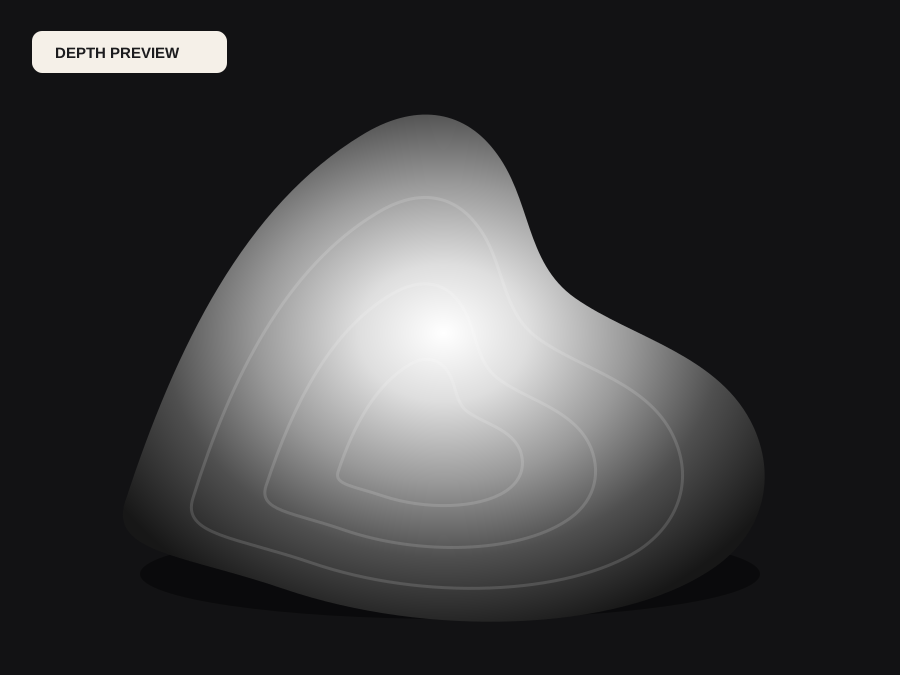
Choose a source image to begin.
Real work, real failure cost
The useful product is not the model call. It is the review loop that catches a reversed field, a noisy border, or an impossible relief before the next tool turns that mistake into wasted time.
01
Begin relief modeling with reviewed image structure.
02
Reduce repeated cleanup across customer orders.
03
Preserve a reproducible range before creative sculpting.
01
Carveco offers deep relief modeling, which is exactly why an unchecked depth file is expensive there. Once noisy borders and compressed subject detail have been merged into a component, separating them again costs sculpting time and usually loses the original relationship between features.
Approving the field outside Carveco keeps that decision visible and cheap. If a border is noisy or a subject is flat, it is obvious in the comparison view and free to fix, rather than becoming an invisible part of a model that already looks finished.
02
Repeat work is the norm in a carving shop: the same portrait across different sizes, or a family of pieces that must match. Standardising the range — the same black and white points, the same inversion, the same flattening — is what makes those pieces consistent, and it makes a customer revision a matter of changing one value rather than starting over.
Keep the approved PNG with the project file. When a piece is revisited a season later, the reproduction path is a saved field rather than a guess about what the original settings were.
03
Carveco Maker, Carveco, and Carveco Plus differ in how they import and combine relief data, and the menus move between releases. Confirm the import path, units, combine mode, and zero plane in your own installed edition before you rely on a remembered sequence.
DepthCarve supplies prepared geometry or grayscale and stops there. It does not choose machining allowances, strategy, stepover, or post-processors, and it makes no claim about what a particular relief will do under a particular cutter.
Five bounded stages
Check source contrast, edge detail, border clutter, and resolution before an AI call is trusted.
Adjust the subject mask, background, curve, detail, smoothing, taper, frame, and real dimensions for free.
Compare beam or tool size, tonal slices, slope, base, manifold topology, and bounding box with the real setup.
Approve one successful production job only after the free 2D and 3D previews earn acceptance.
Download one verified ZIP and inspect it in LightBurn, CAM, or a slicer before committing production material.
Choose by next action
| Output | Use it for | It does not guarantee | Cost |
|---|---|---|---|
| 8-bit PNG | Preview, mask, laser and compositing tests | Physical scale or machine settings | Free |
| Compatible 16-bit PNG | Compatibility with grayscale depth workflows | Additional source precision | Free |
| Preview STL | Low-cost scale and import checks | Printability, tool reach, or safe G-code | Free |
| Production job bundle | Raw EXR, true 16-bit pair, STL, preview and manifest | Hidden surfaces or certified metric truth | 1 credit |
Straight answers
Yes. DepthCarve provides a prepared starting field or STL. Use Carveco's sculpting and relief tools for artistic cleanup, blending, component assembly, and final CAM preparation.
Import grayscale when you want Carveco to build the relief and you intend to sculpt or combine it. Import the STL when you already have the shape you want and need a closed, dimensioned object to machine directly.
Save the approved grayscale field with the range values that produced it, and reuse them for every size in the order. Changing width scales the piece without changing the relationships between features.
No. Cutter selection, stepover, feeds, machining allowance, and post-processing belong to Carveco and to your machine. The exported file describes form, not strategy.
Preview the idea. Pay for usable output.
Start without an account. When a professional format earns approval, use the welcome credit or choose a pack that matches the shop's workload.