01
3D-print makers
Test a relief or lithophane idea before committing filament and print time.
Image to STL
Turn a picture into a closed relief mesh with real dimensions, inspect it in your slicer or CAM package, and pay only when the production file is worth manufacturing.
Three free AI previews per day · no account to try · one credit unlocks the production bundle
Live manufacturing workbench
Three free AI previews per day. Source checks, editing, 3D preview, and compatibility exports are free.
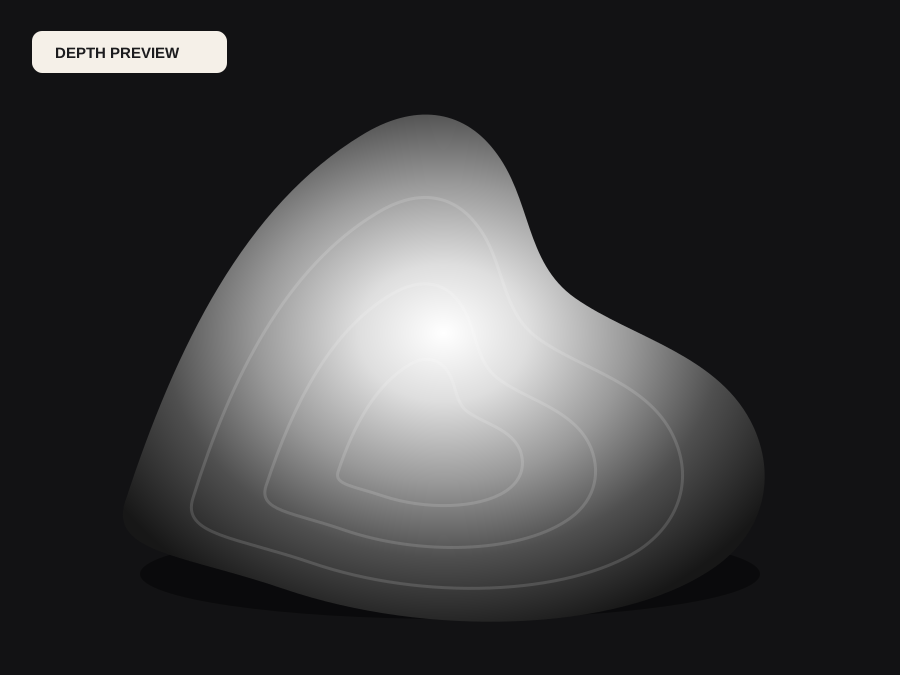
Choose a source image to begin.
Real work, real failure cost
The useful product is not the model call. It is the review loop that catches a reversed field, a noisy border, or an impossible relief before the next tool turns that mistake into wasted time.
01
Test a relief or lithophane idea before committing filament and print time.
02
Check scale, base, and tool reach before a customer's material is on the bed.
03
Move a reference image into a mesh for mockups without a full sculpt.
01
The phrase covers at least three workflows. A silhouette converter extrudes a logo or outline into a flat solid. A photogrammetry or AI reconstruction tool tries to recover a full object with hidden sides. A relief converter turns brightness or estimated distance into a height field and then gives that field a back, walls, and a base. The first is useful for signs, the second needs several views or a strong prior, and the third is the job a single photograph can honestly support.
DepthCarve is the third kind. It estimates relative depth, lets you shape the useful range, and builds a closed relief mesh. It does not invent the back of a person's head, a chair's hidden legs, or the inside of a cup. If the project needs a full watertight object rather than a relief, this is the wrong tool and the result will show it at the first slicer check.
02
A grayscale PNG is a surface sample, not a solid. If you import it directly into a slicer, most tools either refuse it or create a zero-thickness sheet that cannot be printed, carved, or reliably sliced. A useful STL needs a top surface, side walls, and a bottom face, and the two surfaces must meet without gaps. That is the difference between a picture of a hill and a physical tile.
The free preview STL is a low-resolution closed mesh intended for import, scale, and orientation checks. The production bundle builds a denser watertight STL from the raw depth field, records the dimensions and validation results in a manifest, and returns it in one ZIP. Neither file is G-code, and neither decides feeds, speeds, power, or toolpath strategy for you.
03
A strong relief source has one clear subject, a border that can become a stable base, and lighting that describes form rather than hiding it. Front-facing portraits, pets, product shots on a quiet background, architectural details, and memorial photographs usually behave better than scenes with glass, mirrors, smoke, fine foliage, or several overlapping subjects at different distances.
Crop before generating. A small subject surrounded by a large room spends most of the depth range on the room. Remove captions, UI overlays, and decorative borders that should not become raised geometry. If the source is a JPEG, expect compression blocks and sharpening halos to appear as small ridges; the JPG-specific guide explains what to fix before conversion.
04
Width, relief height, base thickness, and mesh grid are not cosmetic settings. A 120 mm portrait with a 6 mm relief reads very differently from the same image at 300 mm and 2 mm. The base has to be thick enough to survive handling and thick enough for the process: a 3D print can use a thin base, while a carved wood panel needs enough material for the cutter and for the mounting method.
Mesh density controls how much detail the geometry can carry. Too little and faces become facets; too much and the file grows without adding information the depth estimate actually contains. The manufacturing checks compare the selected tool or beam diameter, depth step, stock thickness, tonal slices, slope, and bounding box so an impossible combination is visible before export.
05
The free path includes source checks, shaping controls, a low-resolution 3D preview, an 8-bit PNG, a compatibility 16-bit container, and a preview STL. These files are enough to answer whether the scene interpretation and the dimensions make sense. They are not enough to claim production precision, because the compatibility 16-bit file derives from the 8-bit preview.
One approved production job re-encodes from raw floating-point depth. The ZIP contains the source EXR, verified forward and inverse true 16-bit PNGs, the preview, a denser watertight STL, and a manifest of adjustments, dimensions, machine assumptions, and validation results. A confirmed provider failure returns the credit; a completed estimate that is unsuitable for the material does not.
06
Open the STL in the slicer or CAM package at the real size. Check the bounding box, the base, the orientation, and whether the software reports a closed manifold. For 3D printing, slice a small version first and look for unsupported overhangs, thin walls, and islands. For CNC, simulate the toolpath and confirm the cutter can reach the deepest parts of the relief without colliding with the stock or fixture.
Keep the image decision and the machine decision separate. The preview answers whether the image should become a relief. The slicer or CAM test answers whether this particular relief works with this particular machine and material. Combining both questions in one expensive attempt makes a failure impossible to attribute.
Five bounded stages
Check source contrast, edge detail, border clutter, and resolution before an AI call is trusted.
Adjust the subject mask, background, curve, detail, smoothing, taper, frame, and real dimensions for free.
Compare beam or tool size, tonal slices, slope, base, manifold topology, and bounding box with the real setup.
Approve one successful production job only after the free 2D and 3D previews earn acceptance.
Download one verified ZIP and inspect it in LightBurn, CAM, or a slicer before committing production material.
Choose by next action
| Output | Use it for | It does not guarantee | Cost |
|---|---|---|---|
| 8-bit PNG | Preview, mask, laser and compositing tests | Physical scale or machine settings | Free |
| Compatible 16-bit PNG | Compatibility with grayscale depth workflows | Additional source precision | Free |
| Preview STL | Low-cost scale and import checks | Printability, tool reach, or safe G-code | Free |
| Production job bundle | Raw EXR, true 16-bit pair, STL, preview and manifest | Hidden surfaces or certified metric truth | 1 credit |
Straight answers
The source checks, shaping, 3D preview, 8-bit PNG, compatibility 16-bit PNG, and low-resolution preview STL are free without an account. One approved production bundle costs one credit, and a new account starts with one credit.
No. It creates a relief with a front surface, walls, and a base. Hidden sides and interior cavities are not recoverable from one view. Use a multi-view reconstruction or a sculpt when the job needs a full object.
Yes, if a relief is acceptable. High-contrast line art usually becomes a clean raised shape, but very thin lines may need a larger physical size or a different extrusion workflow so they survive the chosen process.
Enough to carry the detail the source actually contains, not the largest number the tool allows. Compare the tool or nozzle diameter with the mesh grid and inspect the preview before choosing a dense production mesh.
No. The STL is geometry. It still needs CAM setup, tool selection, feeds, speeds, origin, and safe clearances. Simulate the toolpath and test on scrap before cutting a customer's material.
A confirmed provider failure writes an idempotent refund for the original debit. A completed estimate that you decide not to use is not a provider failure.
Preview the idea. Pay for usable output.
Start without an account. When a professional format earns approval, use the welcome credit or choose a pack that matches the shop's workload.