01
CNC relief makers
Turn an existing grayscale height map into a closed mesh with a known base.
PNG to STL
A PNG can already be height data. The conversion goes wrong when bit depth, inversion, transparency, or physical size is assumed instead of checked.
Three free AI previews per day · no account to try · one credit unlocks the production bundle
Live manufacturing workbench
Three free AI previews per day. Source checks, editing, 3D preview, and compatibility exports are free.
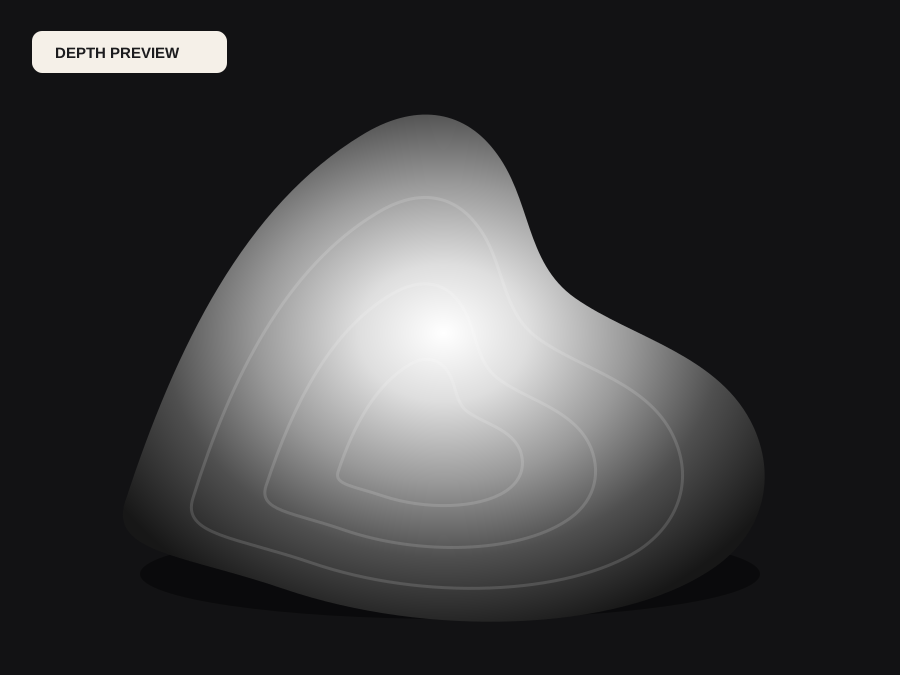
Choose a source image to begin.
Real work, real failure cost
The useful product is not the model call. It is the review loop that catches a reversed field, a noisy border, or an impossible relief before the next tool turns that mistake into wasted time.
01
Turn an existing grayscale height map into a closed mesh with a known base.
02
Test a height field as geometry without opening a full DCC package.
03
Check whether a height map has enough information to print cleanly.
01
A PNG can store 8-bit or 16-bit grayscale, RGB, RGBA, palette, or transparency. A height map usually uses one channel, where black is the low end and white is the high end, but the convention is not guaranteed. Some tools write the opposite direction, some store a normalized range that does not use the full 0-255 or 0-65535 span, and some attach an alpha channel that means nothing to the geometry.
Before conversion, inspect the file in an image editor that reports bit depth and the actual minimum and maximum values. If the useful range occupies only the middle third of the histogram, the relief will look flat until you remap the black and white points. If the file is 8-bit, do not put it into a 16-bit container and call it higher precision; the missing levels cannot be recreated.
02
A height map is already a measurement or an artistic decision: each pixel says how high the surface should be. A photograph is a record of reflected light. Bright skin and a bright wall can share a value while representing completely different depths. If the PNG is a photograph, the first job is depth estimation, not direct conversion. If it is a height map, skip the model call and convert the data you already own.
DepthCarve accepts both paths. The free normal-map converter and the relief workbench can read a grayscale PNG as height, while the AI path estimates relative depth from a photograph. The important part is to know which one you have before you judge the result.
03
8-bit grayscale gives 256 height levels. On a 6 mm relief, one level is about 0.023 mm, which is below many CNC depth steps but can become visible on a smooth gradient or a large print. 16-bit gives 65,536 levels and more headroom for a gentle slope. The advantage is real only when the source actually contains that precision and the downstream process can resolve it.
A common failure is an 8-bit image saved into a 16-bit file. The container has more levels, but the values still land on the original 256 steps. DepthCarve labels the free compatibility file honestly and encodes the true 16-bit pair from raw floating-point depth only in the approved production bundle.
04
Decide whether white means near or far. If the map was authored for a different renderer or CAM package, the direction may be reversed. Use the invert control and compare the 2D and 3D previews before export. A reversed field can look plausible in grayscale and become a hole where a face should be.
Transparency is not height. If the PNG has an alpha channel, either flatten it onto a known background or use it as a mask to remove unwanted geometry. Holes, floating islands, and disconnected pieces are a manufacturing problem even when the preview looks correct. Flatten the background, add a stable border, and inspect the mesh for closed topology.
05
A 1024-pixel-wide map says nothing about millimeters. Set the width, relief height, base thickness, and mesh grid deliberately. A 60 mm test tile and a 600 mm wall panel can use the same PNG and need very different relief heights, base thicknesses, and mesh densities. The base is what makes the mesh a solid; it is not padding.
The free preview STL is intentionally low resolution: it answers scale and orientation questions quickly. The production mesh is denser and validated for closed topology. If the preview already shows a flat subject, a broken border, or an impossible slope, a denser mesh will only reproduce the same problem with more triangles.
06
Import the STL into the target program at real size. Confirm the bounding box, the base, and the manifold status. In a slicer, look for islands, unsupported overhangs, and walls thinner than the nozzle. In CAM, compare the deepest relief with the cutter's reach and the stock thickness, then simulate the toolpath.
Keep the PNG and the manifest with the finished part. If a later revision needs a different width or a deeper relief, the source data and settings explain what changed. A mesh alone does not record the decisions that produced it.
Five bounded stages
Check source contrast, edge detail, border clutter, and resolution before an AI call is trusted.
Adjust the subject mask, background, curve, detail, smoothing, taper, frame, and real dimensions for free.
Compare beam or tool size, tonal slices, slope, base, manifold topology, and bounding box with the real setup.
Approve one successful production job only after the free 2D and 3D previews earn acceptance.
Download one verified ZIP and inspect it in LightBurn, CAM, or a slicer before committing production material.
Choose by next action
| Output | Use it for | It does not guarantee | Cost |
|---|---|---|---|
| 8-bit PNG | Preview, mask, laser and compositing tests | Physical scale or machine settings | Free |
| Compatible 16-bit PNG | Compatibility with grayscale depth workflows | Additional source precision | Free |
| Preview STL | Low-cost scale and import checks | Printability, tool reach, or safe G-code | Free |
| Production job bundle | Raw EXR, true 16-bit pair, STL, preview and manifest | Hidden surfaces or certified metric truth | 1 credit |
Straight answers
You can convert a grayscale or photographic PNG, but the result depends on what the pixels mean. A height map converts directly; a photograph needs depth estimation first. Line art and logos may be better served by an extrusion workflow.
Use 16-bit when the source genuinely contains more than 256 levels and the process can resolve them. Do not upconvert an 8-bit file and expect new detail. The production bundle encodes true 16-bit from raw float depth.
The useful range may be compressed, the image may be nearly uniform, or the relief height may be too small for the chosen dimensions. Check the histogram, remap the black and white points, and increase relief height before exporting.
Only if you explicitly use it as a mask. By default, flatten the image onto a known background. Holes and islands can make the mesh non-manifold or unprintable.
Yes, if the logo has enough contrast and the smallest feature is larger than the cutter. A relief is often better than a zero-thickness silhouette because it gives the part a base and walls.
Preview the idea. Pay for usable output.
Start without an account. When a professional format earns approval, use the welcome credit or choose a pack that matches the shop's workload.