01
Portrait engravers
Protect a commission from a reversed or muddy first burn.
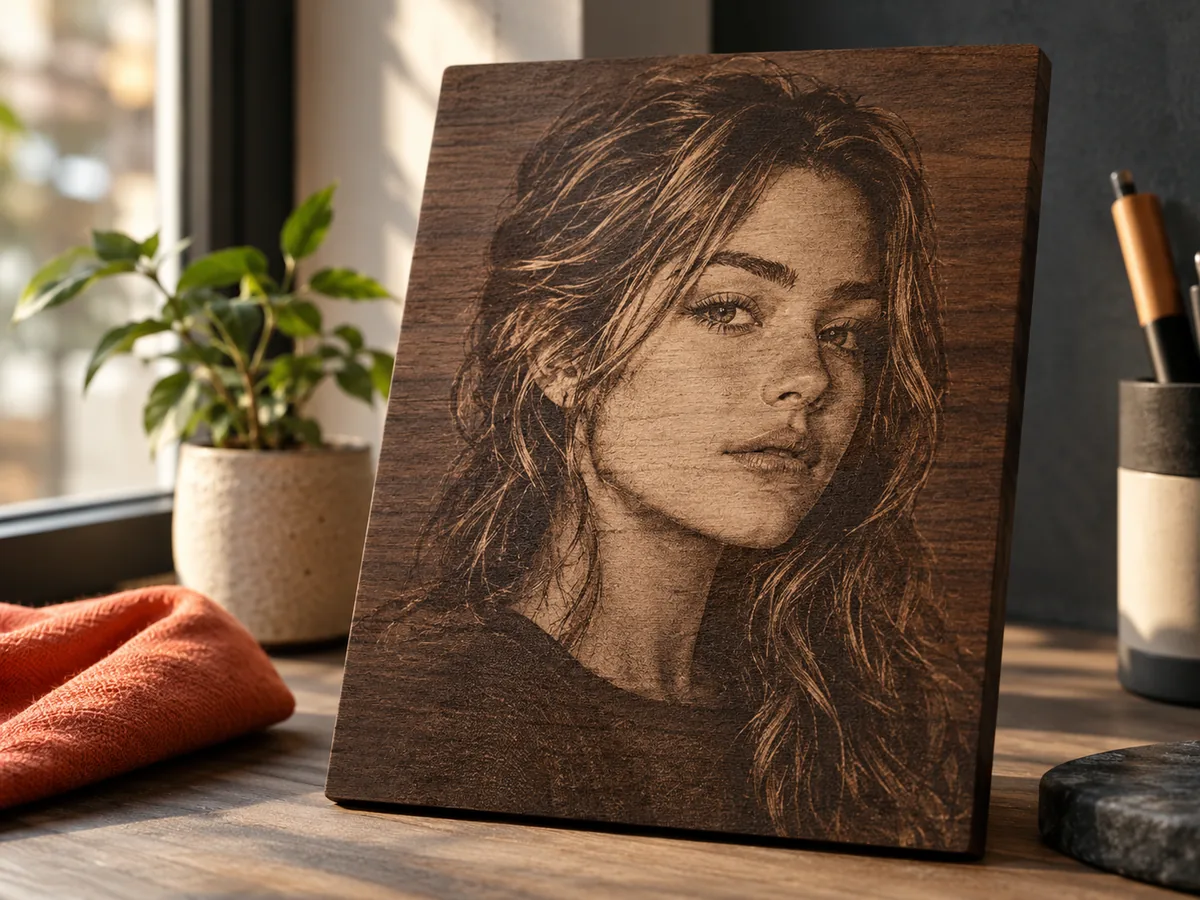
Laser engraved portrait
Separate the face from the background, choose the engraving direction, and test a free grayscale file before a portrait commission reaches the laser.
Three free AI previews per day · no account to try · one credit unlocks the production bundle
Live manufacturing workbench
Three free AI previews per day. Source checks, editing, 3D preview, and compatibility exports are free.
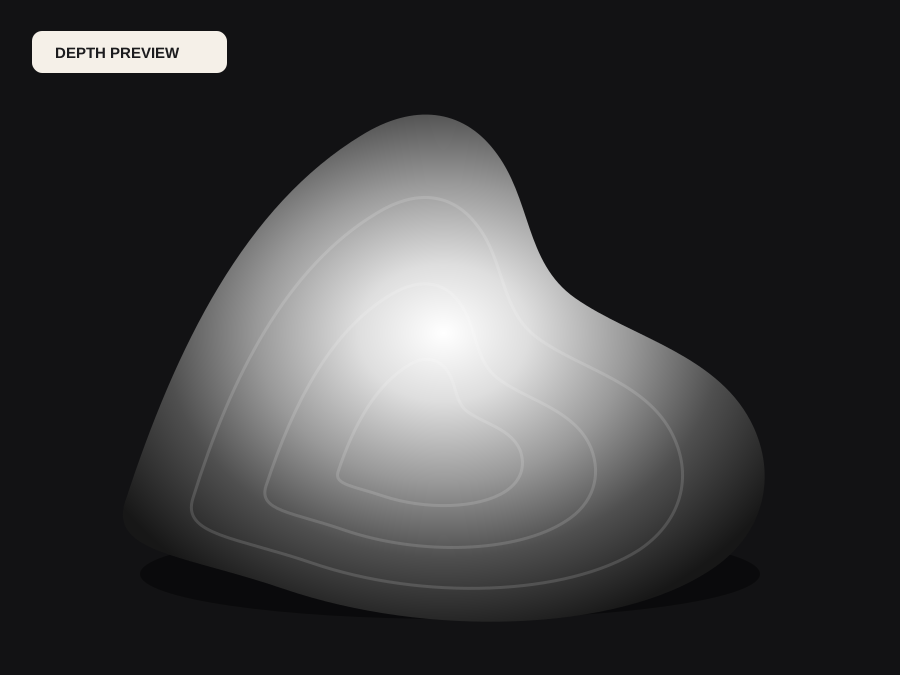
Choose a source image to begin.
Real work, real failure cost
The useful product is not the model call. It is the review loop that catches a reversed field, a noisy border, or an impossible relief before the next tool turns that mistake into wasted time.
01
Protect a commission from a reversed or muddy first burn.
02
Provide a customer proof before the final piece.
03
Learn the portrait workflow on scrap, not on a customer order.
01
A landscape can hide a weak depth estimate in foliage or texture. A face cannot. The nose, eye sockets, lips, and hairline are familiar enough that a small reversal or a flattened cheek is immediately visible. Inspect the preview at full size, then inspect the side view. The question is whether the face reads as the same person, not whether the grayscale looks artistic.
A single photo cannot reconstruct the side of the face that is turned away. If the portrait is a strong profile, the far eye and the far cheek may be missing. Choose a front or gentle three-quarter view when the likeness matters, and set expectations for what the model can and cannot infer.
02
A dark background on dark wood can merge with the hair. A bright window can become a bright halo. Raise the black point to flatten the background, or crop it out entirely. The goal is a clean separation between the subject and everything else, not a busy scene.
If the source has a strong shadow beside the face, check whether the depth map turns that shadow into a ridge. A shadow is not a shape, but it can look like one. Smoothing and a narrower range often reduce the confusion without destroying the likeness.
03
The laser cannot resolve an eyelash that is smaller than the beam. Fine jewelry, hair strands, and fabric patterns may disappear or become noise. Compare the detail figure in the manufacturing check with the beam size. If the detail is below the beam, simplify the image or accept a softer portrait.
Tonal slices matter for the same reason. A busy depth field with many small transitions may not have enough distinct levels in the material. Smoothing the map and reducing the number of competing features usually produces a cleaner engraving than preserving every highlight.
04
Show the customer the free preview before the final burn. Ask specifically about the eyes, the expression, and the crop. If the customer approves, approve the production bundle and keep the file with the order. If the customer hesitates, fix the source or the crop before spending material.
Run a small test on the same material and settings. Inspect it under the lighting the customer will use. A portrait can look good in a bright workshop and disappear in a dim hallway. The test is the bridge between the file and the finished piece.
Five bounded stages
Check source contrast, edge detail, border clutter, and resolution before an AI call is trusted.
Adjust the subject mask, background, curve, detail, smoothing, taper, frame, and real dimensions for free.
Compare beam or tool size, tonal slices, slope, base, manifold topology, and bounding box with the real setup.
Approve one successful production job only after the free 2D and 3D previews earn acceptance.
Download one verified ZIP and inspect it in LightBurn, CAM, or a slicer before committing production material.
Choose by next action
| Output | Use it for | It does not guarantee | Cost |
|---|---|---|---|
| 8-bit PNG | Preview, mask, laser and compositing tests | Physical scale or machine settings | Free |
| Compatible 16-bit PNG | Compatibility with grayscale depth workflows | Additional source precision | Free |
| Preview STL | Low-cost scale and import checks | Printability, tool reach, or safe G-code | Free |
| Production job bundle | Raw EXR, true 16-bit pair, STL, preview and manifest | Hidden surfaces or certified metric truth | 1 credit |
Straight answers
Yes. The depth estimate uses structure, not color, but color photos with even lighting usually produce a more stable result. A black-and-white scan can work too if the face is sharp.
Use the free 8-bit PNG for a first test. Use the true 16-bit PNG from the production bundle when the laser workflow can resolve more than 256 levels, such as a high-pass-count Galvo job.
No. Power, speed, focus, interval, and passes depend on the machine, lens, and material. The tool prepares the image; you calibrate on scrap.
Yes. The source check, depth preview, range controls, 8-bit PNG, and preview STL are free. The raw-float production bundle costs one credit.
Preview the idea. Pay for usable output.
Start without an account. When a professional format earns approval, use the welcome credit or choose a pack that matches the shop's workload.