01
Laser engraving shops
Separate image preparation from material calibration.
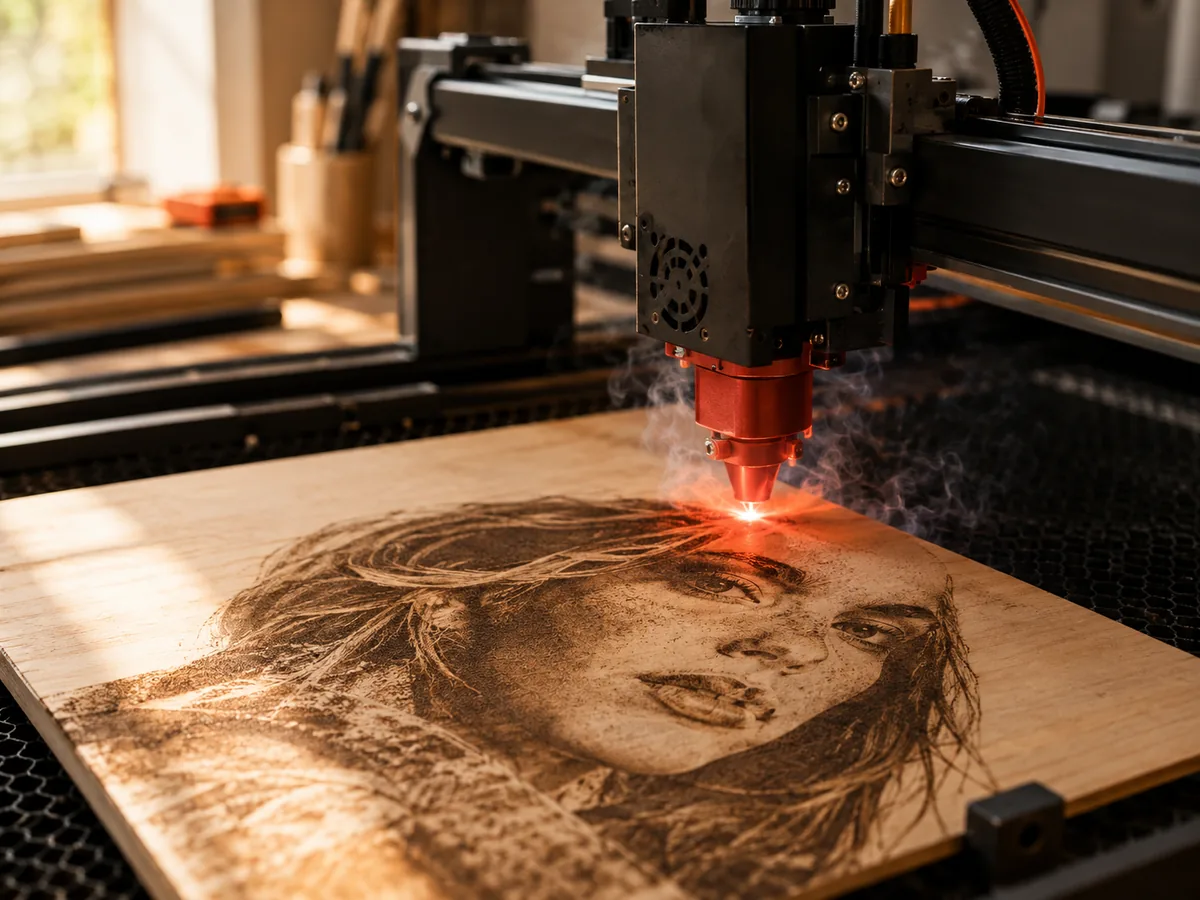
Laser engraving photo
Turn a photo into a grayscale field you can inspect, set the near and far direction, and test a free PNG before the laser touches wood, slate, or coated metal.
Three free AI previews per day · no account to try · one credit unlocks the production bundle
Live manufacturing workbench
Three free AI previews per day. Source checks, editing, 3D preview, and compatibility exports are free.
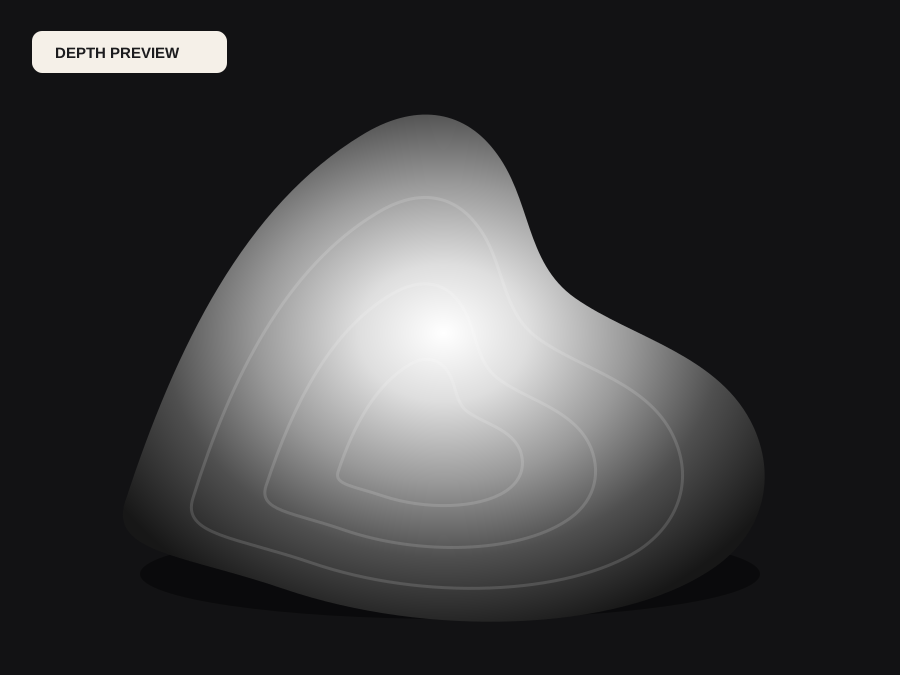
Choose a source image to begin.
Real work, real failure cost
The useful product is not the model call. It is the review loop that catches a reversed field, a noisy border, or an impossible relief before the next tool turns that mistake into wasted time.
01
Separate image preparation from material calibration.
02
Give a customer a proof before a one-off burn.
03
Learn the workflow without risking expensive blanks.
01
Converting a photo to grayscale preserves brightness. A depth map tries to preserve structure. Those are different inputs. A bright forehead and a bright wall can share the same gray value in a photo even though only one is closer to the camera. The workbench estimates relative depth and then lets you decide which end should engrave darker or deeper.
That decision depends on the material and the laser mode. On wood, a darker burn usually means more energy; on coated metal, the coating changes the result. The file does not know your power, speed, focus, line interval, or number of passes. It only gives you a controlled grayscale field to test.
02
Use the invert control to create both interpretations of the same subject. Open the file in your laser software and check the preview at the final size. A reversed field can look plausible on screen and produce a mirrored face on the material. Confirm the direction with a small test before the final burn.
Raise the black point to quiet the background and lower the white point if a small near region is compressing the face. Contrast separates the midtones, but too much contrast turns skin into a poster. Make one change at a time and keep the source visible so a soft error does not become a hard edge.
03
A laser cannot resolve detail smaller than its beam and line interval. Fine eyelashes, jewelry, and fabric texture may disappear or turn into noise. The manufacturing check reports a detail figure against the beam size so you can reject a source before the burn. If the detail is below the beam, simplify the image or accept a softer result.
Tonal slices matter too. A shallow material or a low-power job cannot reproduce every level in a busy depth field. Smoothing the map and reducing the number of competing features often produces a cleaner engraving than preserving every highlight. The goal is a readable portrait, not a histogram.
04
Speed, power, focus, interval, air assist, and passes belong to the material test, not to the depth map. Cut a small sample from the same batch, engrave a test strip, and inspect the darkest and lightest areas. If the result is too dark, change the power or speed; if the shape is wrong, change the map.
Record the file, the material, and the settings together. When a customer asks for a second plaque, you want to reproduce the result, not rediscover it. The free preview and the paid production bundle give you a documented image input; the machine recipe remains yours.
Five bounded stages
Check source contrast, edge detail, border clutter, and resolution before an AI call is trusted.
Adjust the subject mask, background, curve, detail, smoothing, taper, frame, and real dimensions for free.
Compare beam or tool size, tonal slices, slope, base, manifold topology, and bounding box with the real setup.
Approve one successful production job only after the free 2D and 3D previews earn acceptance.
Download one verified ZIP and inspect it in LightBurn, CAM, or a slicer before committing production material.
Choose by next action
| Output | Use it for | It does not guarantee | Cost |
|---|---|---|---|
| 8-bit PNG | Preview, mask, laser and compositing tests | Physical scale or machine settings | Free |
| Compatible 16-bit PNG | Compatibility with grayscale depth workflows | Additional source precision | Free |
| Preview STL | Low-cost scale and import checks | Printability, tool reach, or safe G-code | Free |
| Production job bundle | Raw EXR, true 16-bit pair, STL, preview and manifest | Hidden surfaces or certified metric truth | 1 credit |
Straight answers
The depth preview, range controls, 8-bit grayscale PNG, and low-resolution STL are free. The raw-float production bundle with true 16-bit PNGs costs one credit.
Use the free 8-bit PNG for early tests and the true 16-bit PNG from the production bundle when a Galvo 3D sliced job needs more than 256 passes. Verify the direction in LightBurn before burning.
No. Power, speed, focus, interval, and passes depend on the machine, lens, and material. The tool prepares the image; you calibrate the material on scrap.
Use a photo when you want a recognizable scene. Use a depth map when you want the laser to follow structure rather than brightness. Compare both on a small test before committing a final piece.
Preview the idea. Pay for usable output.
Start without an account. When a professional format earns approval, use the welcome credit or choose a pack that matches the shop's workload.